






If you've ever sent a multi-page document to a printer and seen a checkbox that says "Collate," you've probably wondered what it actually does. Should you turn it on or off? Does it change how your document looks, or just how it's organized? This guide breaks down everything you need to know about collating, why it matters, and when you should use it for your own printing projects, whether you're printing reports, booklets, or custom packaging materials.
What Does Collate Mean?
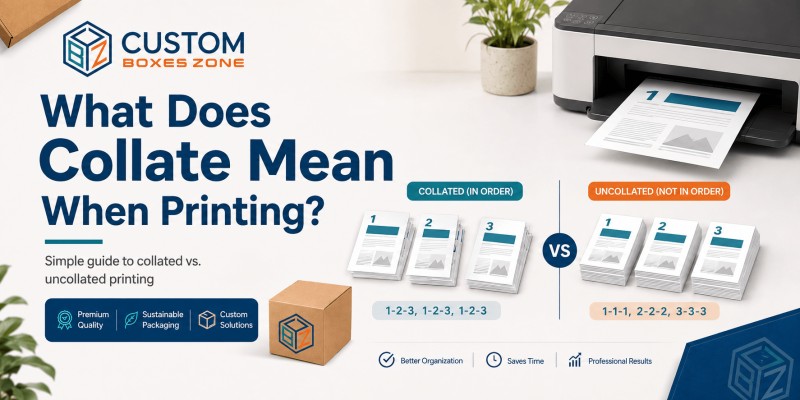
In simple terms, "collate" means arranging printed pages in the correct order, set by set, instead of printing all copies of one page before moving to the next.
When you print multiple copies of a multi-page document with collating turned on, your printer will print one complete copy from the first page to the last page, then start the next copy from page one again. This continues until all the requested copies are finished.
For example, if you print 10 copies of a 5-page document with collation enabled, the output looks like this:
- Copy 1: Page 1, Page 2, Page 3, Page 4, Page 5
- Copy 2: Page 1, Page 2, Page 3, Page 4, Page 5
- Copy 3: Page 1, Page 2, Page 3, Page 4, Page 5
- ...and so on until all 10 copies are complete
Each set comes out ready to use, in the right order, with no extra sorting required.
What Happens When You Don't Collate?
Uncollated printing works the opposite way. Instead of printing complete sets one after another, the printer groups identical pages together.
Using the same example, 10 copies of a 5-page document, an uncollated print job would look like this:
- 10 copies of Page 1
- 10 copies of Page 2
- 10 copies of Page 3
- 10 copies of Page 4
- 10 copies of Page 5
This leaves you with five separate stacks of paper, and you'd need to manually sort and assemble each set yourself, picking one sheet from each stack to build a complete document.
Collated vs. Uncollated: Which One Should You Choose?
The right choice depends entirely on what you're printing and how it will be used.
When to Use Collated Printing
Collated printing is the better option whenever your document needs to be read or used in a specific sequence. Common examples include:
- Reports and business proposals
- Booklets, manuals, and instruction guides
- Presentation handouts
- Exam papers and worksheets
- Multi-page contracts or agreements
- Catalogs and brochures with multiple pages
Basically, if a reader needs to flip from page one to page two to page three in order, you want collation turned on.
When to Use Uncollated Printing
Uncollated printing makes more sense for single-page documents or projects where page order doesn't matter. Examples include:
- Flyers and posters
- Single-page forms
- Notepads (where every sheet is identical)
- Standalone certificates or labels
- Bulk single-sheet handouts
If every page in your file is the same, or each page stands on its own, there's no real need for collation; it won't change the outcome.
Is Collated or Uncollated Faster?
Many people assume uncollated printing is faster because the printer doesn't have to "think" about ordering. In reality, modern printers handle both options almost instantly, with no noticeable speed difference for most jobs.
However, collated printing saves significant time after the print job is done, because you skip the manual sorting step entirely. For large jobs like printing 50 copies of a 20-page manual, that time savings adds up fast. Without collation, you'd be sorting 1,000 individual sheets by hand into 50 complete sets.
Does Collating Affect Binding?
It's a common misconception that collating and binding are the same thing they're not.
- Collating is about the order of pages within a set.
- Binding is about physically fastening pages together (stapling, spiral binding, perfect binding, etc.).
A document can be collated but not bound, bound but not collated, both, or neither. For instance, a notepad is bound at the top, but since every page is identical, there's nothing to "collate"; there's no sequence to maintain.
If you're planning to bind your printed materials, whether with staples, a spiral, or glue, collation is almost always a necessary first step, since binding multiple sets out of order would create unusable documents.
How to Turn On (or Off) Collation When Printing
Most printers and print drivers have collation enabled by default, especially for multi-page documents. Here's how to check or change the setting on common platforms:
On Windows:
- Open the document you want to print and select Print.
- In the print dialog box, look for a Collate checkbox or dropdown.
- Tick the box for collated printing, or untick it for uncollated.
On Mac:
- Go to File > Print.
- Open the print options or copies and pages section.
- Look for the Collate Pages checkbox and toggle it as needed.
At a Print Shop or Online Printing Service: Most professional printing services, including custom packaging and box printing providers, collate multi-page or multi-set print jobs automatically using industrial printing and finishing equipment. If you have a specific preference, it's always a good idea to mention it when placing your order.
Why Collation Matters for Businesses
For businesses that regularly print large volumes of multi-page materials, training manuals, employee handbooks, client proposals, or product catalogs, collation isn't just a convenience. It directly affects:
- Efficiency: Staff spend less time manually sorting and assembling documents.
- Accuracy: Reduces the risk of missing pages or pages being out of order.
- Professionalism: Documents handed to clients or customers arrive complete and ready to use.
- Cost savings: Less labor time spent on manual assembly means lower overall production costs.
Whether you're printing internal reports or materials meant for customers, getting the collation setting right ensures your final product looks polished and professional.
Final Thoughts
Understanding what "collate" means when printing helps you avoid confusion, save time, and produce better-organized documents. To recap:
- Collated = complete sets printed in page order, one after another (best for multi-page documents that need to stay in sequence).
- Uncollated = identical pages grouped together (best for single-page or standalone prints).
Most printers default to collated printing for multi-page jobs, and for good reason: it saves time and prevents the headache of manually sorting hundreds of sheets. The next time you see that "Collate" checkbox in your print settings, you'll know exactly what it does and which option is right for your project.